

+

VideoNest + Wix

Embed your VideoNest library anywhere on your Wix site, with full control over playback, layout, and ownership.

Get Started in 3 Easy Steps

Upload Your Content

Upload your videos to the VideoNest platform or using cloud integrations.

Generate Your Feed

Create a compliant MRSS feed using our feed generator.

Submit to

Wix

Copy your unique feed URL and provide it to the platform.

Why Use VideoNest with Wix

VideoNest provides a professional, stable home for your entire video library, plus a fast, customizable video player. Wix provides the ability to design and publish websites with full visual control.

Together, VideoNest and Wix enable you to:

  • Host and organize your videos in one place
  • Embed videos or full channels on any Wix page
  • Unlock monetization and distribution options as your library grows

Video embeds work on every VideoNest plan that includes the video player, from Free through Enterprise. As you upgrade, you gain access to websites, advanced feeds, and monetization without changing how embeds work.

What You Unlock with VideoNest on Wix

  • Embed a single video on any page or section
  • Embed a channel carousel to showcase your latest videos
  • Control playback options from the VideoNest admin, including autoplay and captions
  • Keep your content centralized in VideoNest, while your site renders the player

Everything runs through the VideoNest Embed Code or Channel Embed, added using Wix’s Embed Code element.

Requirements

Before you start, make sure you have:

  • An active VideoNest account with video player access
  • At least one video uploaded or synced into your VideoNest library
  • A Wix site where you can edit pages
  • Access to Wix’s Embed Code element

Option 1: Embed a Single Video

Use this when you want a specific video in a page, landing section, or content block.

Step 1: Copy the VideoNest Embed Code

  1. Log in to VideoNest
  2. Open your Library and select the video
  3. Locate the Embed Code section below the player
  4. Click Copy

This embed code contains everything Wix needs to render the VideoNest player correctly.

Step 2: Add the Embed in Wix

  1. Open your Wix Editor
  2. Navigate to the page where the video should appear
  3. Click Add and select Embed Code
  4. Choose Embed HTML
  5. Paste the VideoNest embed code

Step 3: Preview and Publish

  1. Preview the page to confirm the video loads correctly
  2. Publish the site

Your VideoNest player now renders directly on your Wix page, pulling the video from your VideoNest library.

Option 2: Embed a Channel Carousel

Use this when you want a playlist that automatically updates from a channel or collection.

Step 1: Copy the Channel Embed Code

  1. In VideoNest, open the channel or playlist
  2. Open the embed or channel settings
  3. Configure any basics, such as:
    • Default sort order
    • Player layout, if available
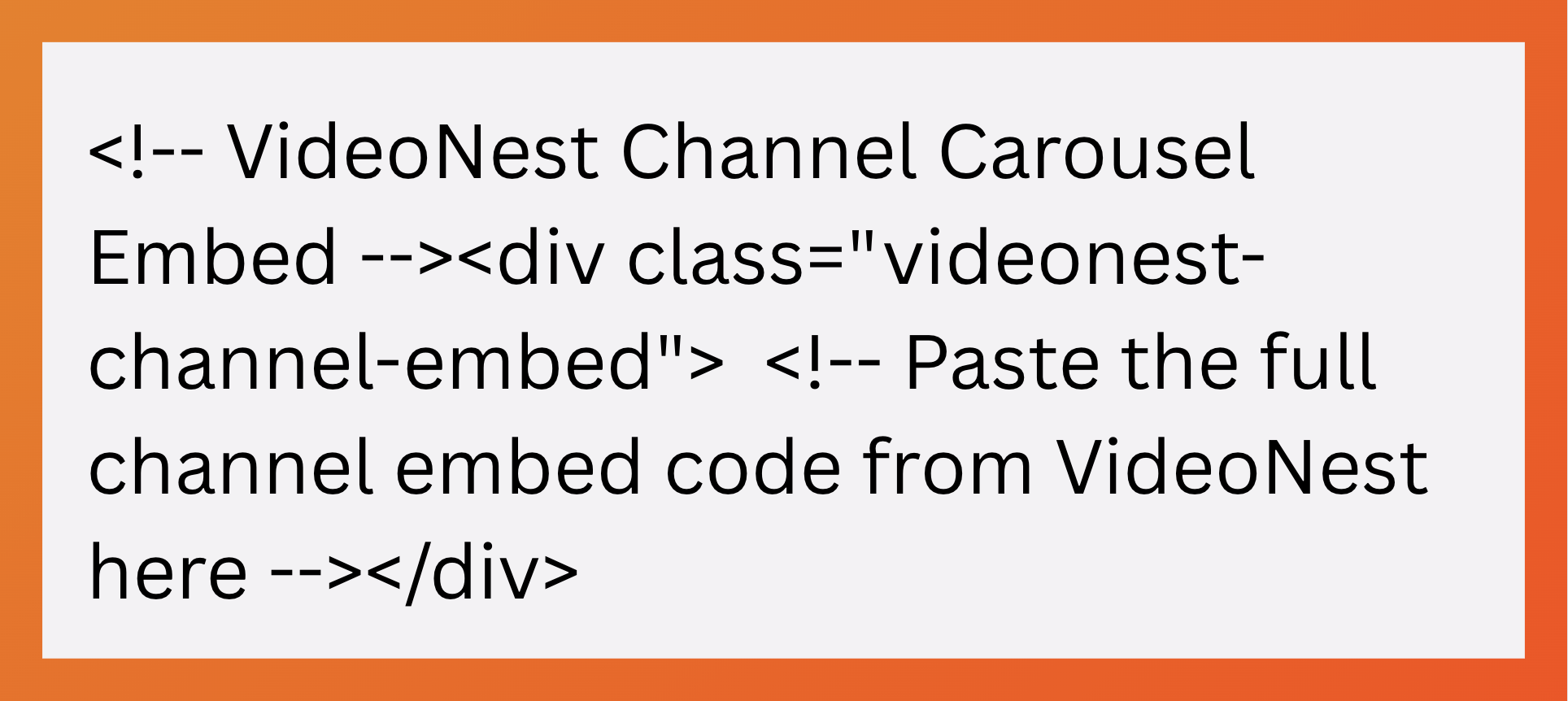
  4. Copy the Channel Embed Code

This works similarly to a single-video embed, but dynamically pulls videos from the channel.

Step 2: Add the Embed in Wix

  1. Open the Wix page where the carousel should appear
  2. Add an Embed Code element
  3. Paste the Channel Embed Code
  4. Preview and publish

As new videos are added to the channel in VideoNest, the carousel updates automatically based on channel configuration.
Best Practices

  • Place embed code in a clean Embed Code element with no other content inside
  • Add headings or context above or below the player for clarity and SEO
  • Manage playback behavior in VideoNest, not Wix

Get Started

  • New to VideoNest: Create an account, upload or sync your first video, and copy your embed code
  • Already a customer: Embed your most important video or channel on a key Wix page and start turning site traffic into engaged viewers

For more information, please see the

Wix

Try VideoNest Today

Upload 25 videos for free, then starts at $29/month.
Upload Videos